Choose a widget or a player window
Start with the job you want to do. A decorative now-playing layout, a playback control and a playlist browser are different requirements. Choose the smallest surface that answers your need, then check the actual app rather than assuming every album-art design behaves the same.
| What you need | Where to start |
|---|---|
| A native macOS desktop widget | Look in Edit Widgets for a supported installed app. |
| A themed Moodsk music design | Inspect Widgets > Music in Moodsk and its current options. |
| A compact Apple Music playback window | Use Music MiniPlayer. |
| A different music service | Check that service and the widget app explicitly support the integration. |
Inspect the native widget gallery
Control-click the wallpaper and choose Edit Widgets. Search for the app you want and inspect the available sizes. If a music service is absent, the gallery cannot create an arbitrary widget from its website or a screenshot. Some iPhone widgets have additional account and proximity requirements.
Compare Moodsk music layouts
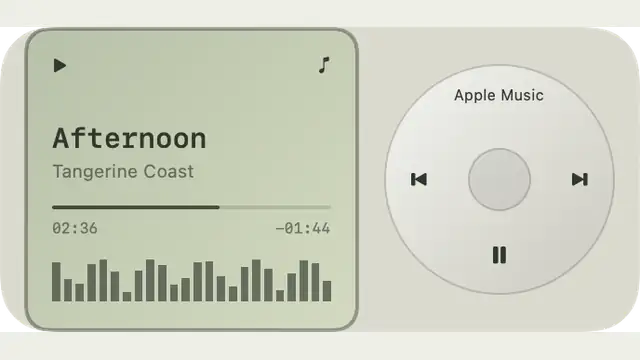
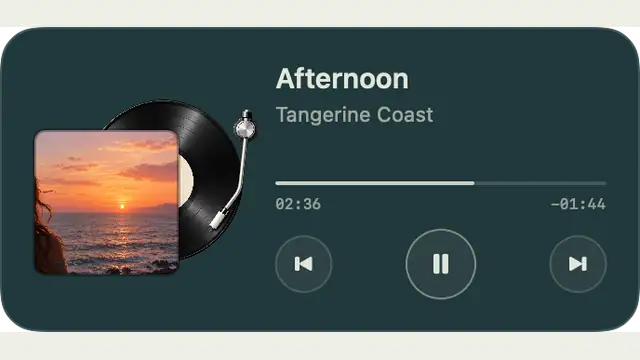
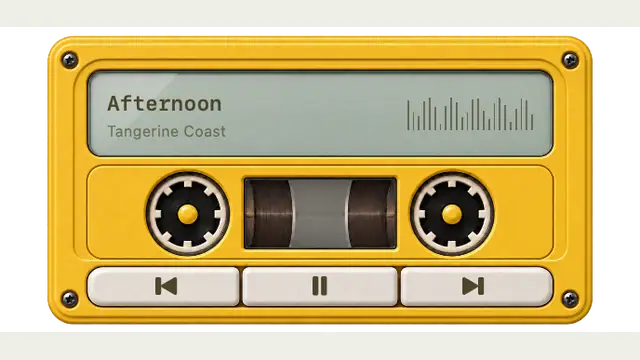
Moodsk includes six Music designs. The examples below come from the native renderer with demonstration data and are static thumbnails. Membership is required. Open a design’s detail page, then inspect the current Music settings in Moodsk before relying on a particular player, artwork source or control.
- Choose a size that leaves track information readable.
- Keep playback information away from folder labels.
- Confirm the app’s current integration and access prompts on your Mac.
Use Apple Music MiniPlayer as an alternative
Open Music, start playback, then choose Window > Switch to MiniPlayer (or MiniPlayer on versions with that label). It provides a small window for the current track and playback controls. In Music > Settings > Advanced, the keep-on-top option can keep it above other windows. MiniPlayer is useful when you need playback access without a full library window.
Source: Apple: Use Music MiniPlayer ↗
Check stale information or missing controls
Check whether playback is active, which player the component is configured to use and whether the app reports a required permission. Reopen its settings before changing unrelated system preferences. A static website thumbnail will never update with your song; it is a design reference, not a live test of your account.
| Problem | First check |
|---|---|
| A service is missing from Edit Widgets | Confirm that the service offers a supported widget. |
| A Moodsk preview shows a sample track | The website uses demonstration data; inspect the app itself. |
| Artwork or controls differ | Check the selected design, current app version and playback integration. |
| You only need Apple Music controls | Try MiniPlayer before adding another desktop surface. |
Remove the extra surface if it duplicates your workflow
Remove a native widget from its context menu, close MiniPlayer with its close control, or manage a Moodsk widget in Moodsk. These are separate surfaces. Keep only the one you actually use so music controls do not crowd out your working folders.