 AI concept
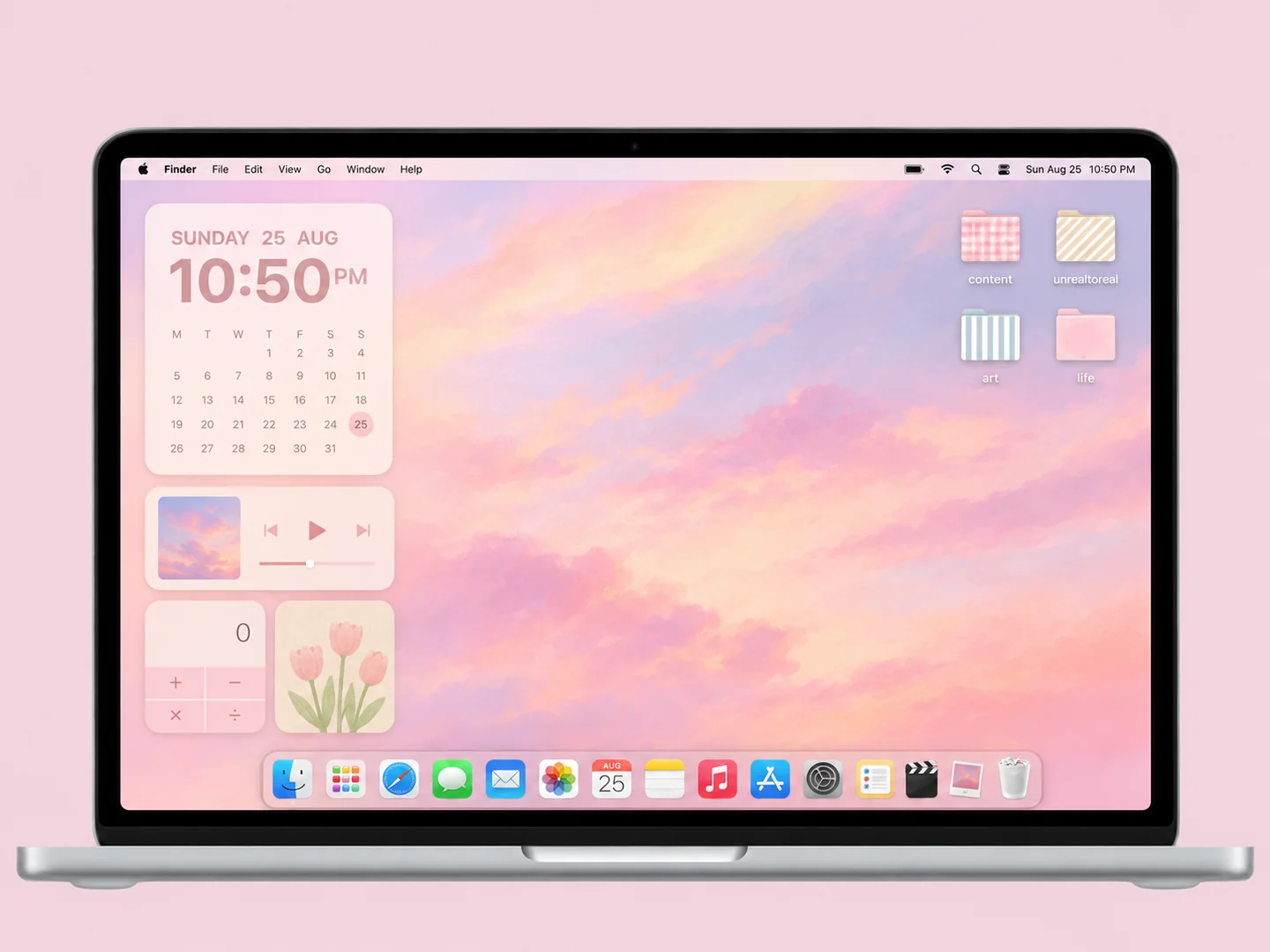
A peach cloud gradient with gingham, striped, and solid pastel folders.
How to recreate itDESKTOP STYLE / MINIMAL
A minimal desktop should make your next file easy to find. Choose a calm wallpaper, keep a small set of active folders, and let spacing do most of the work.
THE IDEA LIBRARY
11 desktop ideas
AI concept previews, each with a look breakdown, recreation tips, and original sources. How we make the images ↗
A preview could not load and has been omitted.
AI conceptA peach cloud gradient with gingham, striped, and solid pastel folders.
How to recreate it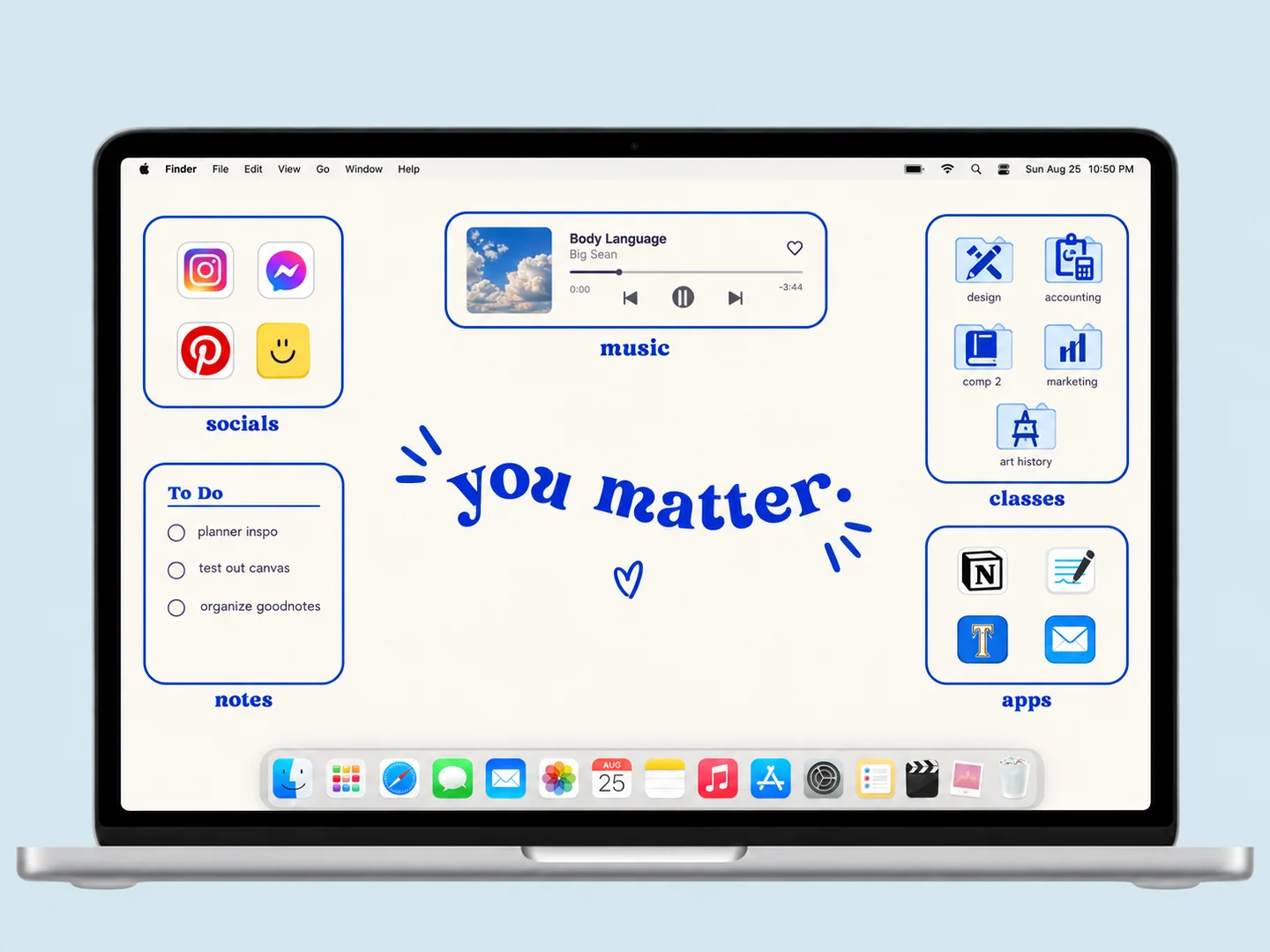 AI concept
Cobalt outlines turn a white desktop into clear zones for classes, music, and everyday apps.
How to recreate it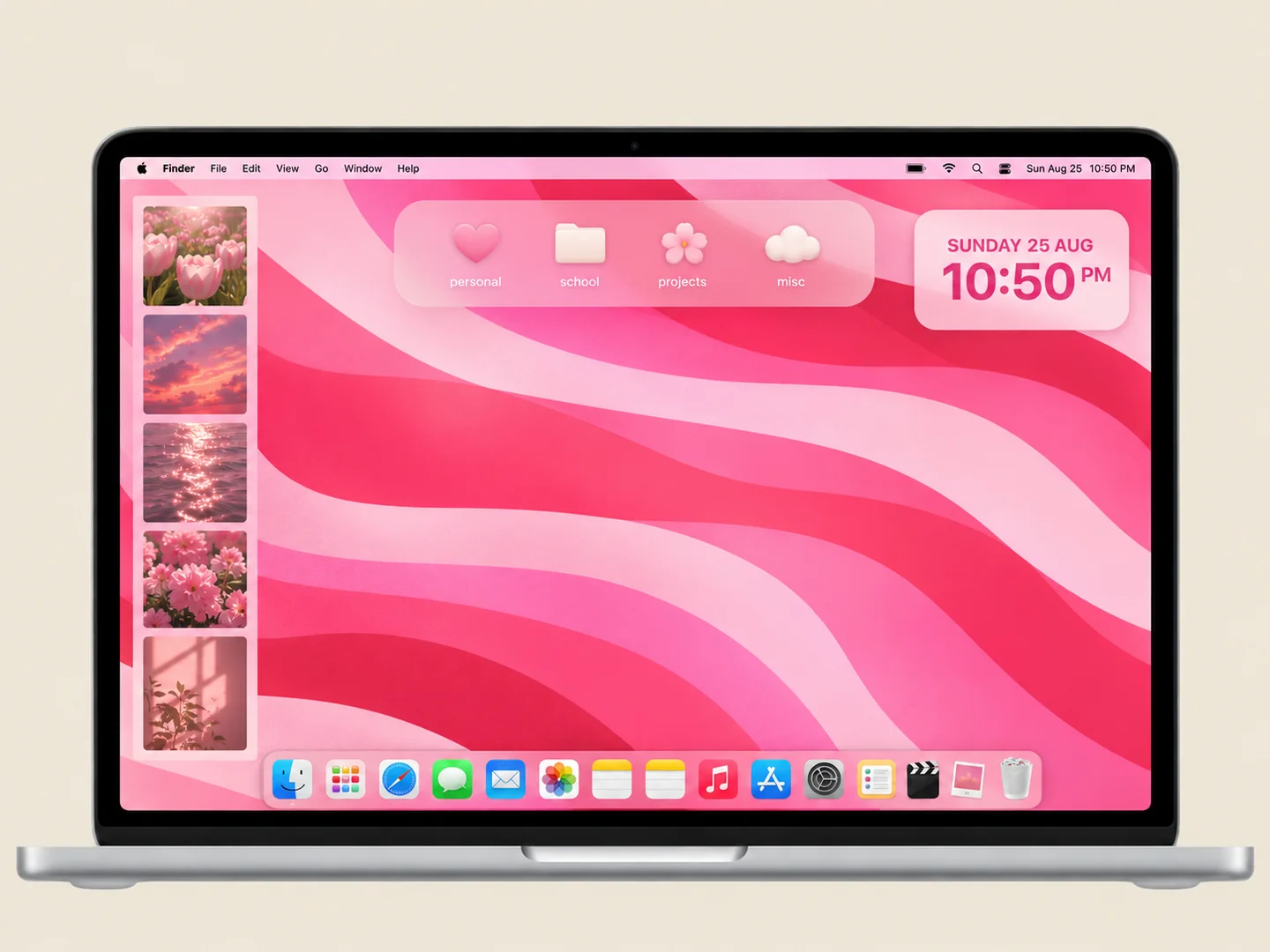 AI concept
Pink ribbon-like waves with small matching folders and a compact widget group.
How to recreate it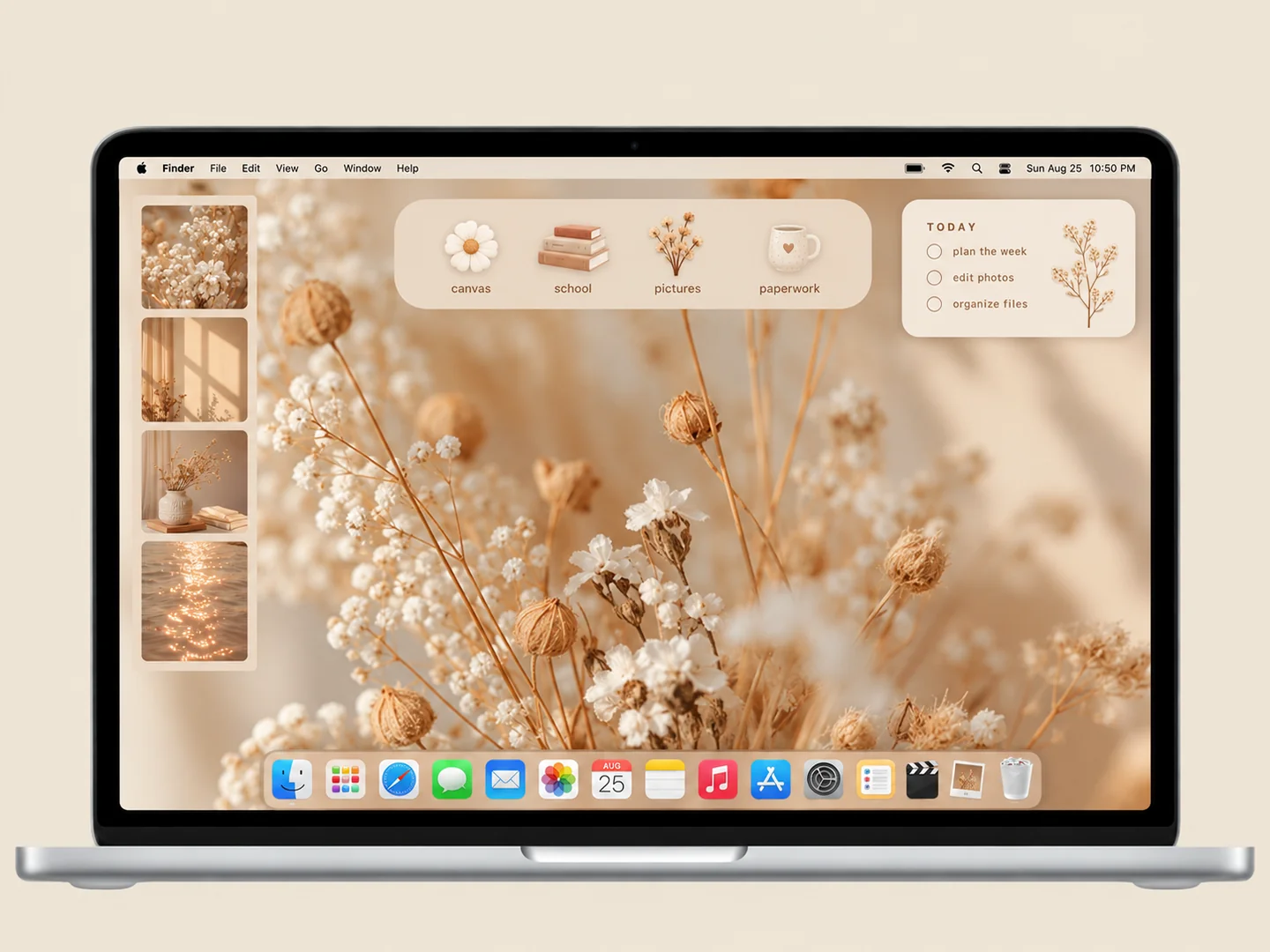 AI concept
Warm neutrals and delicate botanical textures with a restrained set of folders.
How to recreate it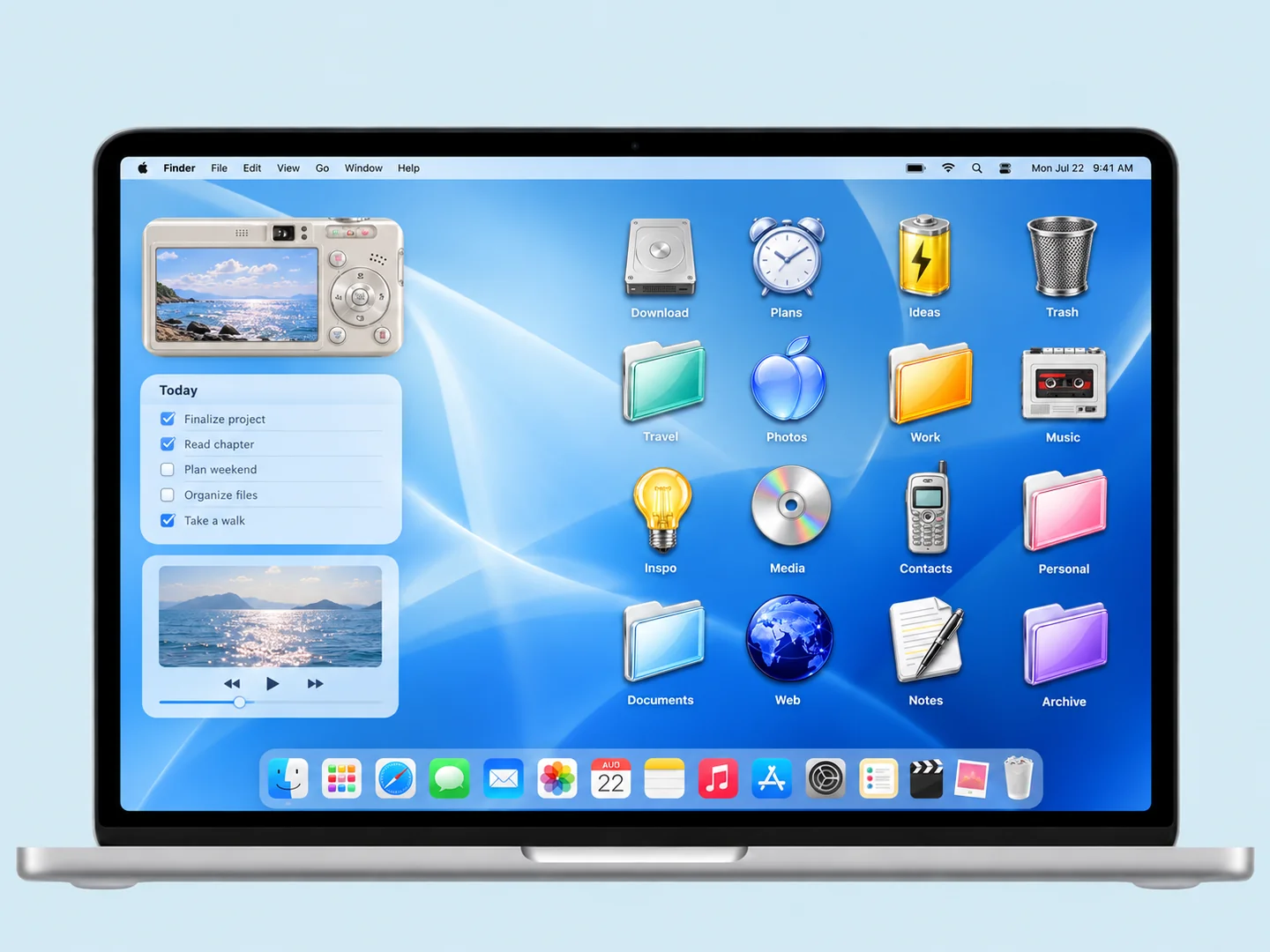 AI concept
Glossy blue waves, translucent folders, and a few nostalgic CD and phone shapes.
How to recreate it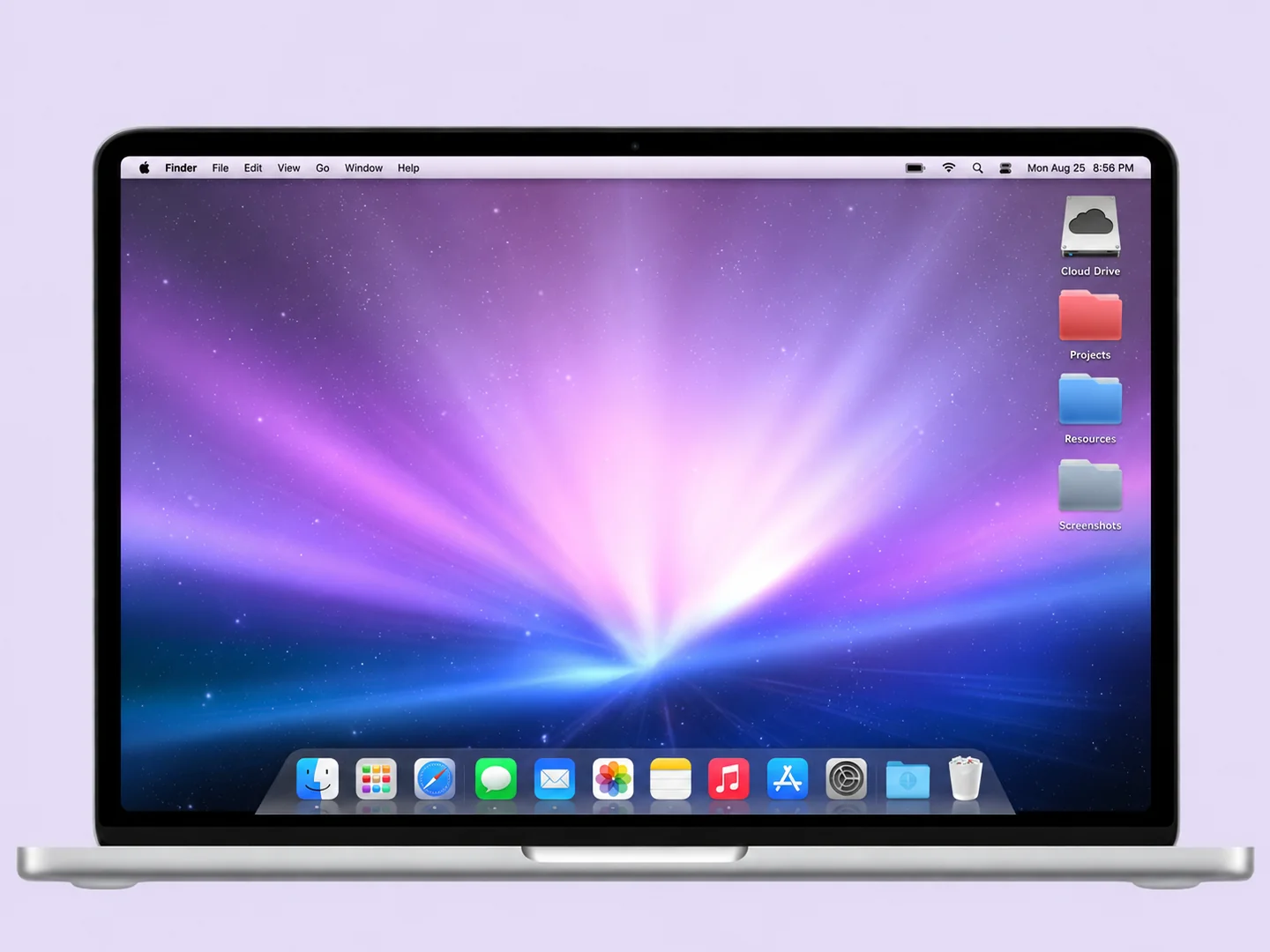 AI concept
Purple aurora light, colorful folders, and a nostalgic Dock-inspired layout.
How to recreate it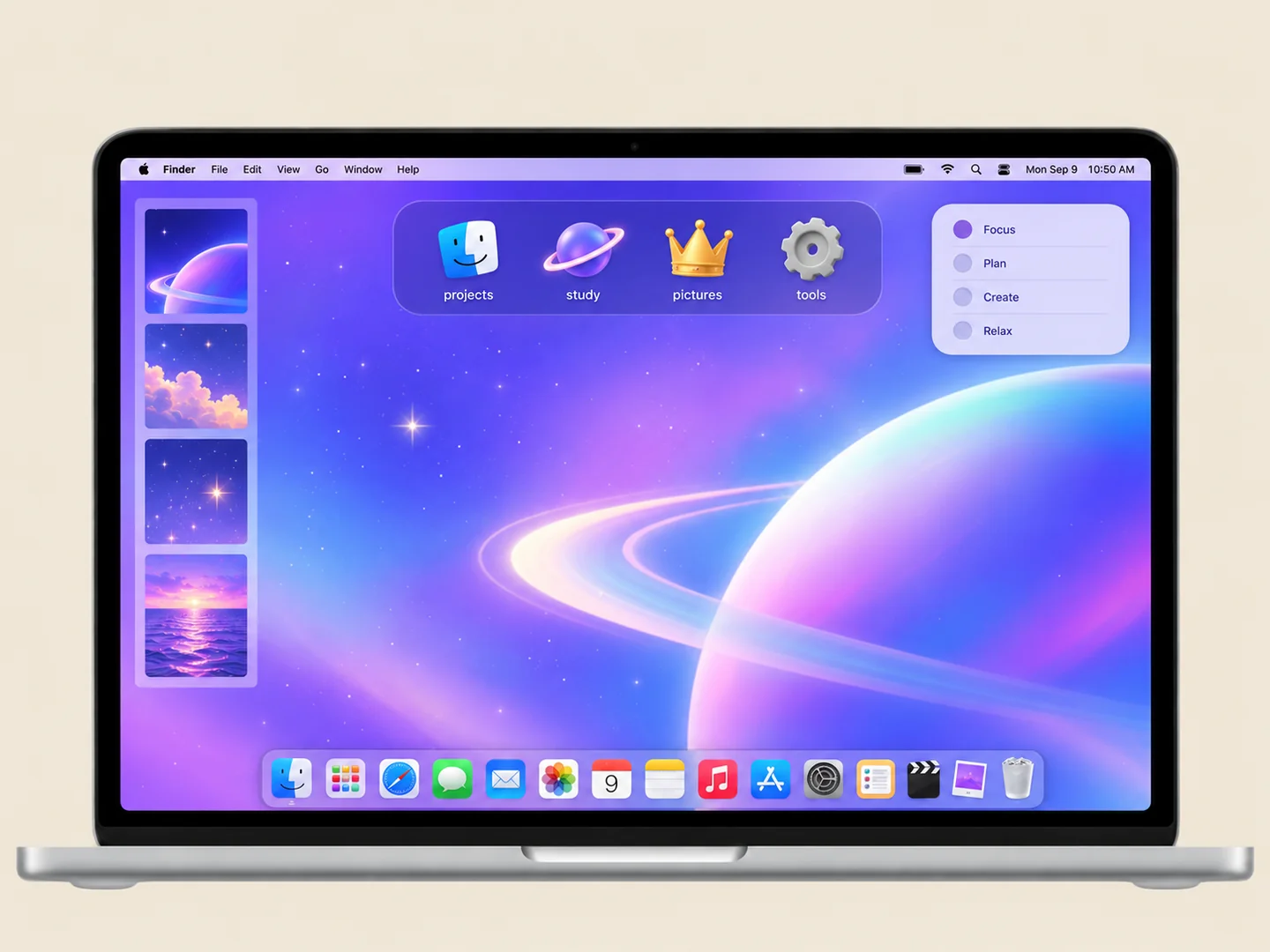 AI concept
A practical starting point: one calm wallpaper, one folder palette, and a clean Dock.
How to recreate it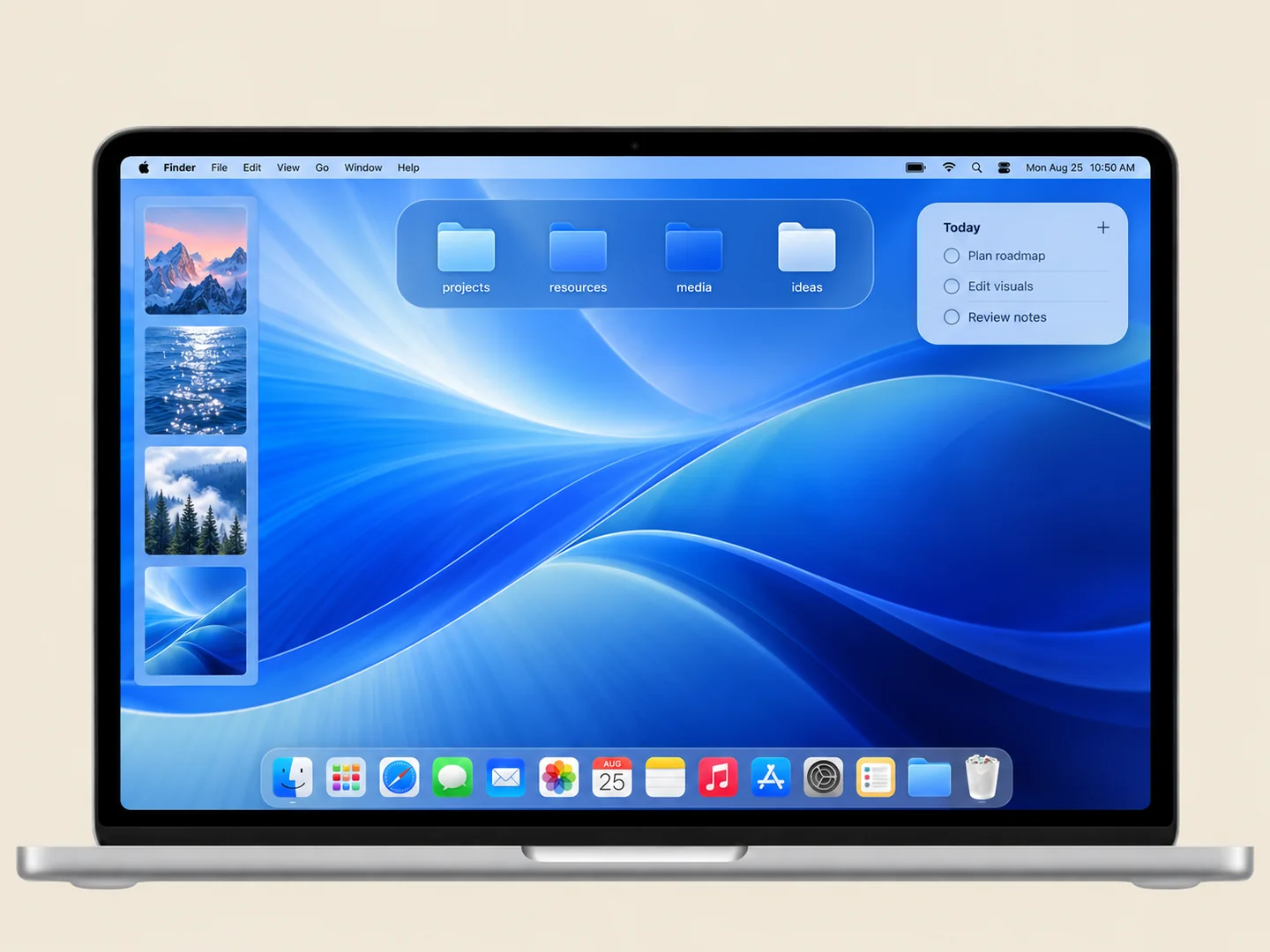 AI concept
A wallpaper-led palette with built-in folder colors and a simple icon layout.
How to recreate it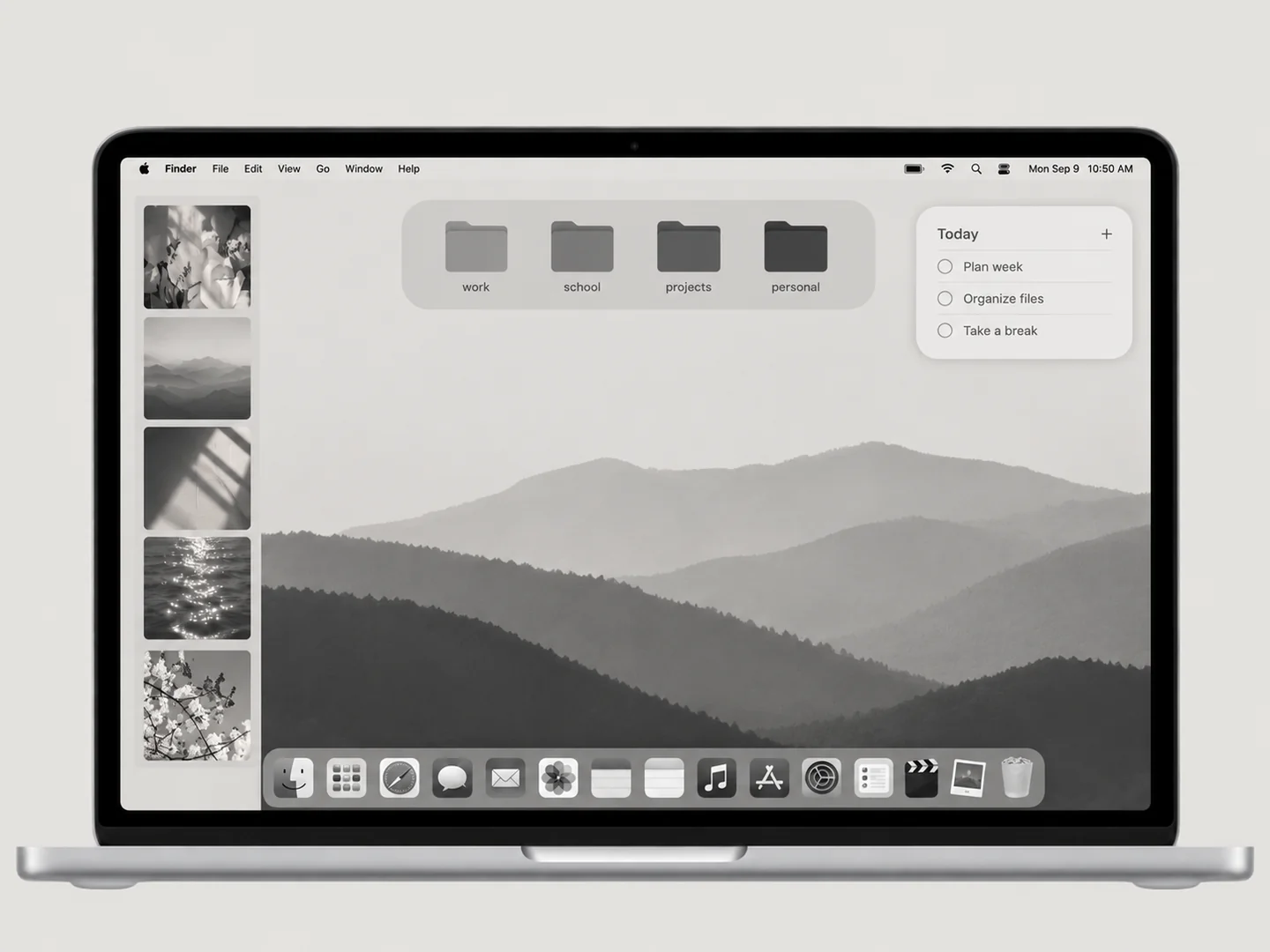 AI concept
A quiet grayscale wallpaper and a disciplined set of charcoal folders.
How to recreate it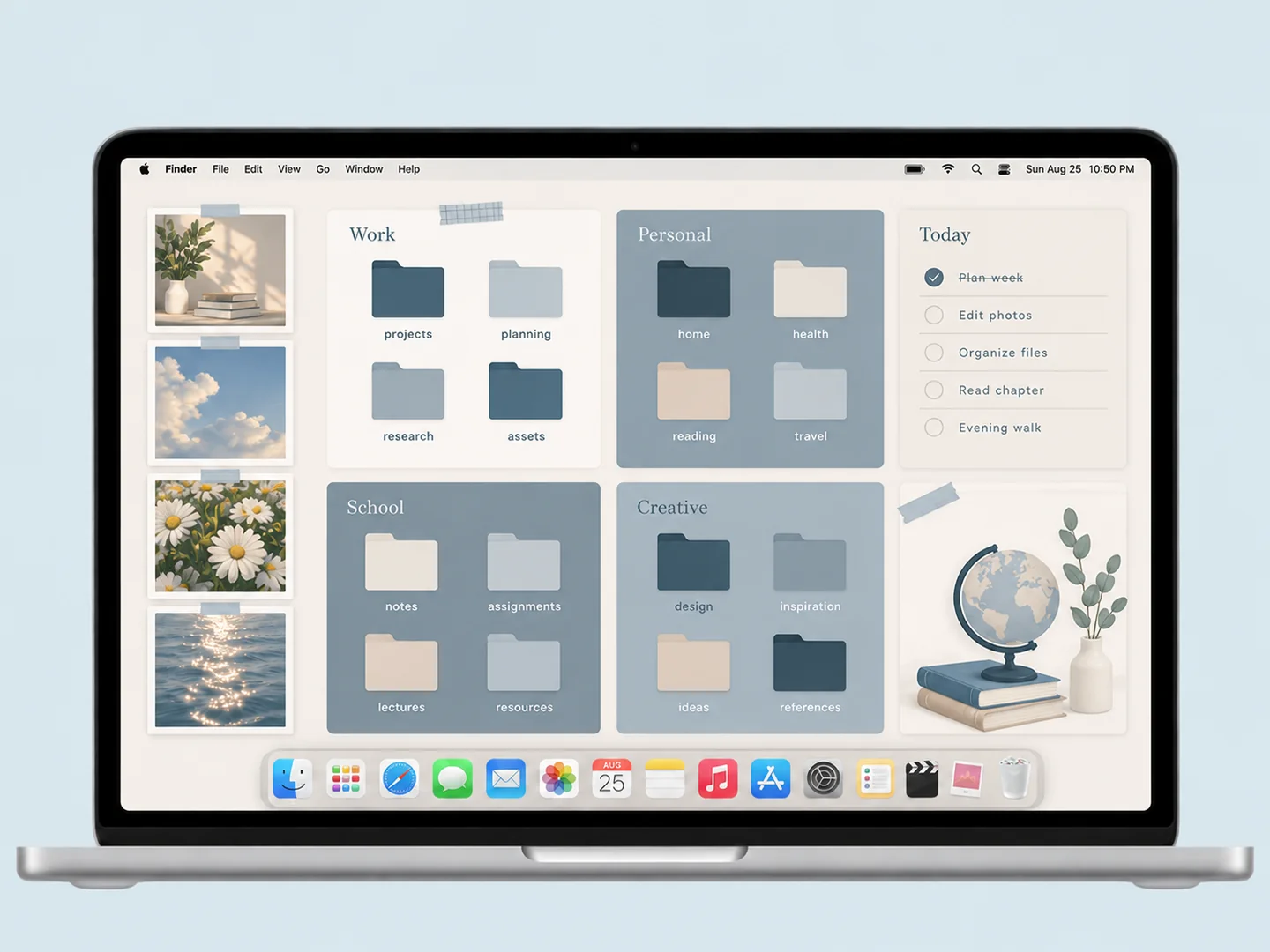 AI concept
Slate-blue panels and cream space with coordinated folders for separate work zones.
How to recreate it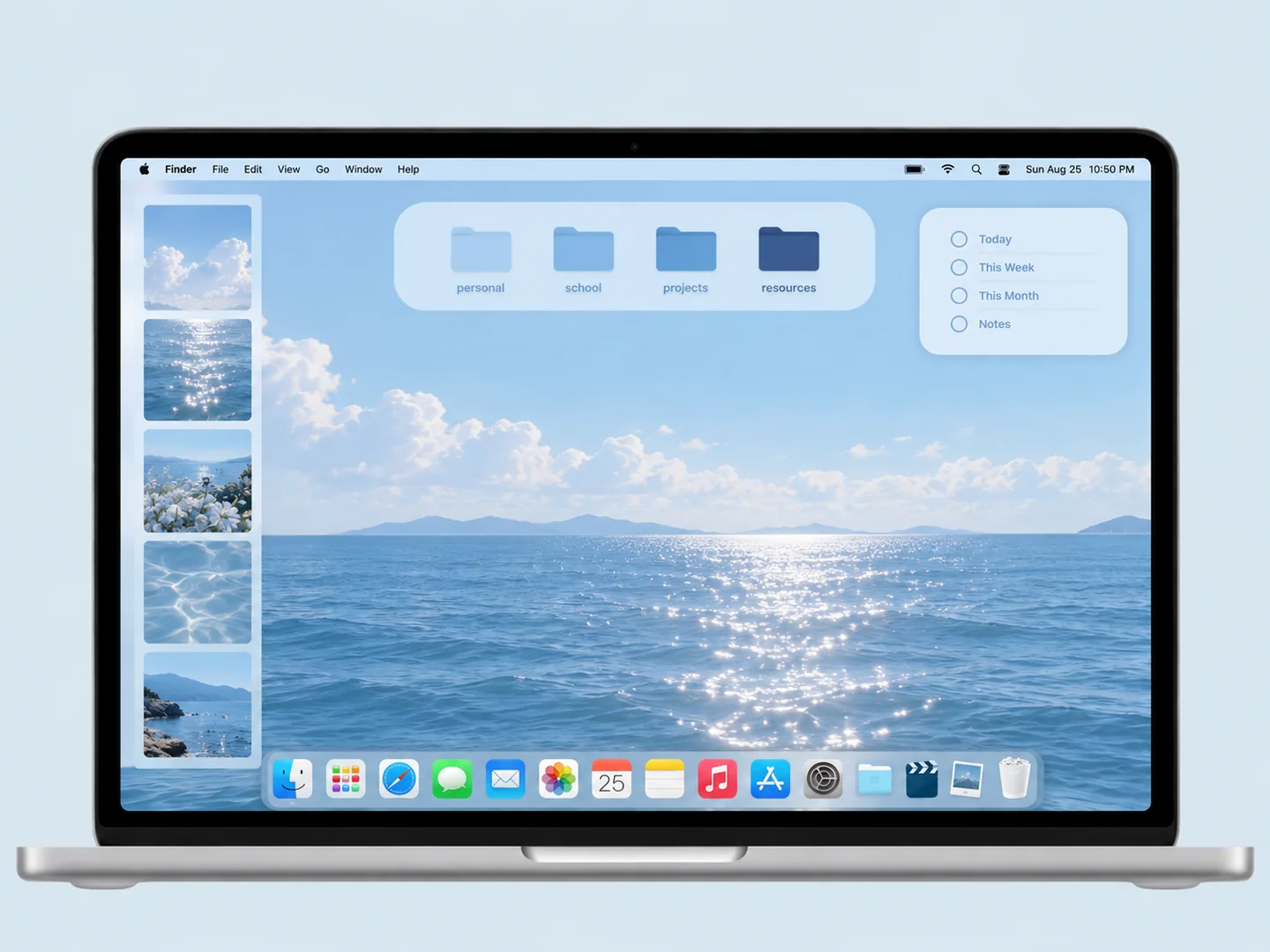 AI concept
Pale sky blue and deep navy folders on a coordinated blue background.
How to recreate itTry another color or a simpler search.
MAKE THE LOOK WORK FOR YOU
Move inactive files into a folder before changing the appearance. A desktop with four useful destinations usually needs less decoration than one with dozens of loose files. Decide whether your folders belong in a column, a short row, or one dedicated work zone.
A simple wallpaper can still hide labels if its light and dark areas sit behind them. Place files on a consistent area of color. Use one folder silhouette and a small range of clearly different shades. Neutral does not have to mean grayscale: quiet blue and muted pink can work too.
Current macOS versions offer folder customization, and desktop View Options control icon size and spacing. Start there before looking for an asset pack. The retro example in this collection is visual inspiration; it does not establish that old system themes work on a current Mac.
You can begin with macOS wallpaper, folder, and Dock settings. A separate app or asset pack is optional. Use the native guide below to make the first changes.
FROM INSPO TO YOUR DESKTOP
Start with a look you like, then change the wallpaper, folders, and layout in that order.
Read the guide →02 / HOW TOUse Finder’s Get Info window to replace a folder icon with an image you are allowed to use.
Read the guide →03 / HOW TOGive files clear destinations before adding an organizer wallpaper or decorative icons.
Read the guide →