Choose the feeling before collecting images
An aesthetic is easier to build when one layer leads. A soft pink background can carry the color while plain icons keep files clear. An illustrated room can carry the detail while folders stay in a quiet corner. Choose the look you want during ordinary work, not only in a full-screen image.
| Direction | Wallpaper choice | Layout to try |
|---|---|---|
| Pink or pastel | Soft color with a quiet label area | A short row of coordinated folders. |
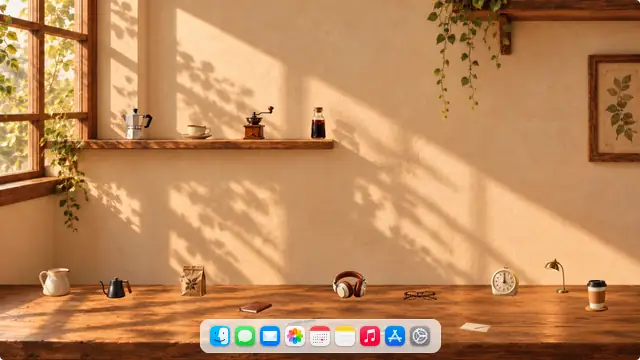
| Cozy or vintage | Warm room illustration or muted texture | Files beside the detailed area. |
| Minimal | A plain color or restrained landscape | A compact work column and one useful widget. |
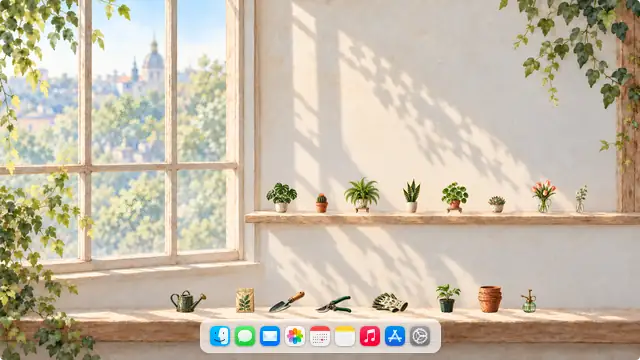
| Nature or study | Landscape or organizer composition | A few clear destinations for active work. |
Compare real collection previews
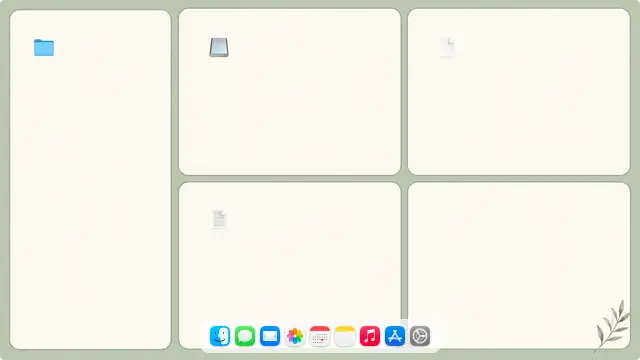
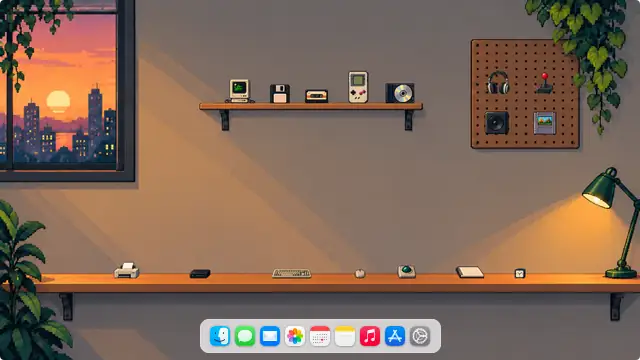
The examples below use our own Moodsk content. Basic, Emoji, Cartoon Doodle Zoo and Symbols are the four free collections. Other collections require membership. The Dock is a reference arrangement of system apps, not a replacement Dock icon pack. Check the current app catalog before choosing a collection.
- Compare the wallpaper and folder silhouettes together.
- Read the collection access notice before continuing to the app.
- Use the original artwork in Moodsk instead of saving these thumbnails.
Check the composition at working size
Shrink your reference to roughly the size you normally view the desktop. Can you still distinguish folders and read their names? A detailed collage may look attractive alone but compete with calendar text. Move the work zone to an even area, or choose a quieter background instead of adding more outlines and shadows.
Set the wallpaper, then add one matching layer
Open System Settings > Wallpaper to set your authorized original. Check its crop before placing files. Match a single folder style first; only then decide whether a calendar or photo widget adds something useful. Follow the linked wallpaper and icon tutorials for exact controls.
Keep decorative panels separate from real tools
A calendar, note or shelf drawn into wallpaper is part of a flat image. It cannot update dates or store files by itself. Use an actual widget for changing information and real Finder folders for storage. Similarly, a desktop preview does not establish that an app supports every interaction suggested by the picture.
Simplify or restore a look that feels busy
Remove one visual layer at a time: an unused widget, an extra folder row, or a wallpaper with too much contrast. Save the previous image before experimenting so you can restore it. A good result is one you can use without searching around the screen for the next file.